Controls, Settings & Steam Deck
Mouse + keyboard only for now (controller support confirmed planned). SPACE launches, 1/E sets speed, and on Steam Deck switch to fullscreen — that one setting is the whole compatibility story.
The demo is mouse-and-keyboard only right now, and two of its settings change how the game feels more than any patch. Here is the full control list, the Steam Deck report, and the settings checklist to run before your first drop.
Controls at a glance
| Input | Action |
|---|---|
| Mouse | Everything pointing — dragging pieces, clicking shop cards, menus |
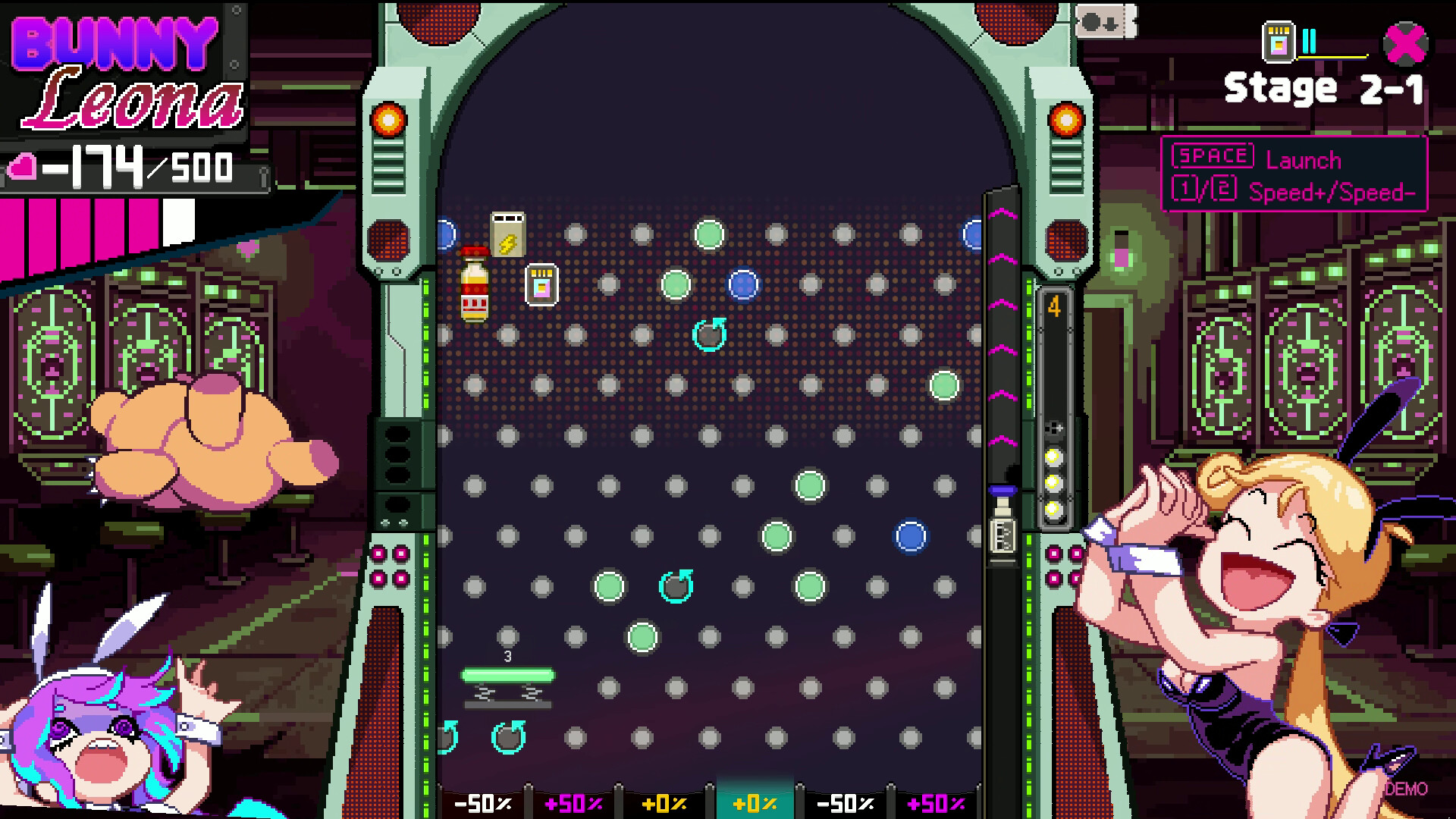
SPACE | Launch the ball |
1 / E | Speed+ / Speed− (adjusts game speed between the two settings shown in the HUD) |
| Drag | Move pieces during the build phase (you have limited moves per round) |
There is no gamepad support in the demo. An official reply confirmed it directly: "The game currently supports mouse and keyboard only… We plan to add controller support in a future update." One player pushed back usefully — for some players controller support is an accessibility feature, not a preference — so expect this to be a prioritized item.
Steam Deck: yes, with one setting
A hands-on report from the Steam forums: the demo runs on Steam Deck without any Proton tweaking — the only fix needed is switching to fullscreen in the settings (the default windowed mode causes issues). No verified badge from Valve yet, but the report is from a real run, not a guess.
Settings checklist (do this first)
- Set fullscreen (mandatory on Deck; recommended everywhere for consistent performance).
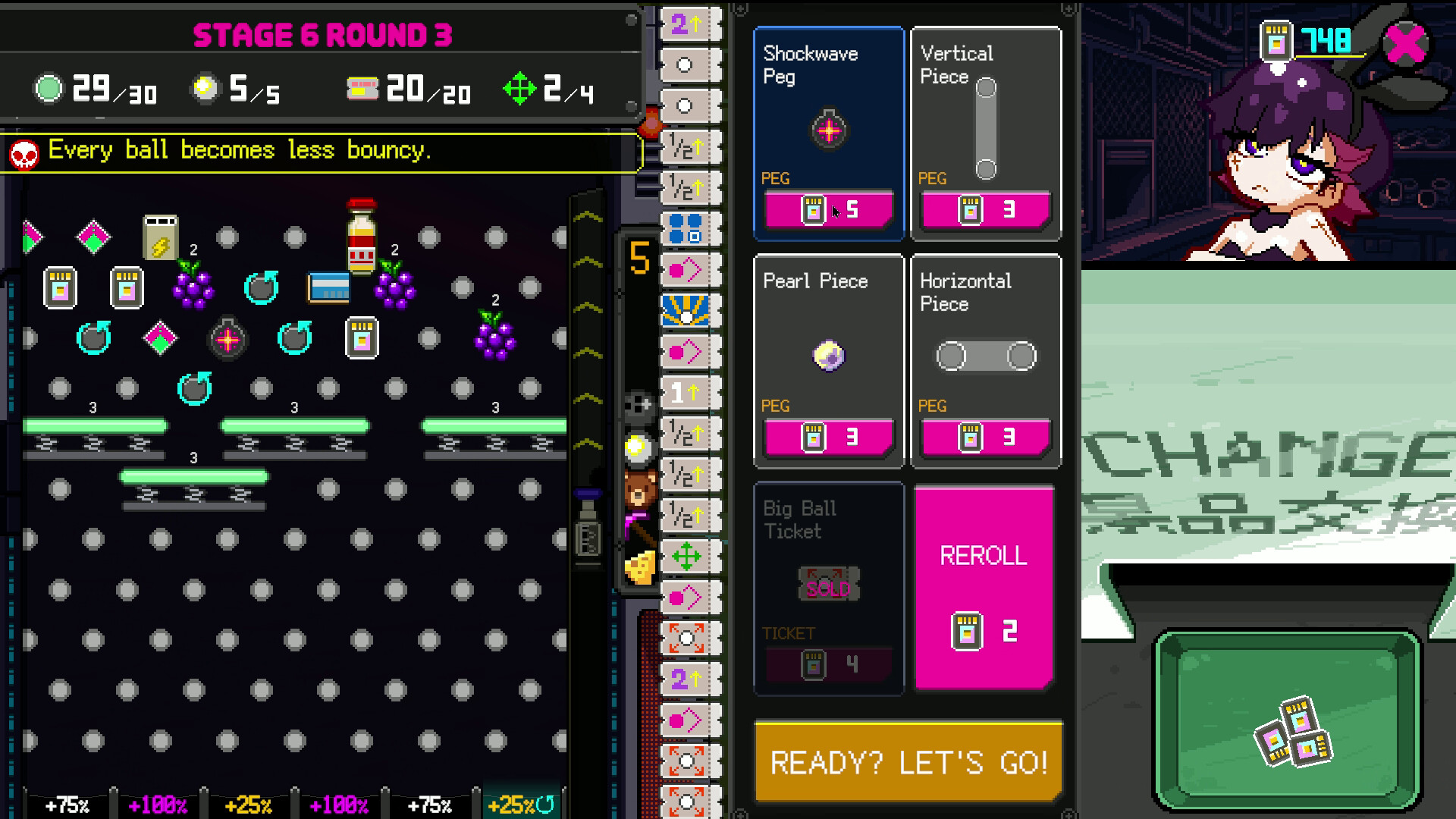
- Pick your speed. Speed+/− visibly changes pacing; players who find the game "slow" should try it before blaming the game. It does not fix everything — the most common early feedback is that the game needs snappier effects and more balls in play — but it helps.
- Learn the launch force. Force is the closest thing this game has to aim. Set it once, learn the landing spot, and build around it (details in the balls guide).
- Turn on subtitles if you care about story — dialogue drives the demo's characterization, and the tutorial text is dense enough that you should not be speed-reading during runs.
Touchscreen and laptops
A player tested the demo on a touchscreen laptop and reported the game "worked shockingly well with touch controls" — with one exception: two-finger right-click gestures do not work on either touchscreens or touchpads. The developers replied they had "totally missed touchscreens and laptops", liked the idea of a drag-to-sell area, and said they'd handle the gesture gap "quick", so expect a fix in a coming update. The current workaround: keep a mouse handy for sell actions.
Known control annoyances
- The tutorial replays after game overs — community consensus is that the post-death tutorial monologue should be skippable. Not yet patched.
- Shopkeeper dialogue can cover the shop UI — a known friction point; the devs are aware.
- Stuck balls: if a ball wedges between pegs and the round stalls (reported bug), nothing in the controls fixes it — wait, or restart the stage.
Related pages
- Getting started — the first-run flow these controls drive
- Demo FAQ — bug list and what the devs are fixing next
- Updates — when control fixes actually ship